
Edit Business Unit Definition
The Definition tab of the Business Unit Details screen displays the configuration options selected for the current Business Unit.
To edit the definition of a Business Unit:
-
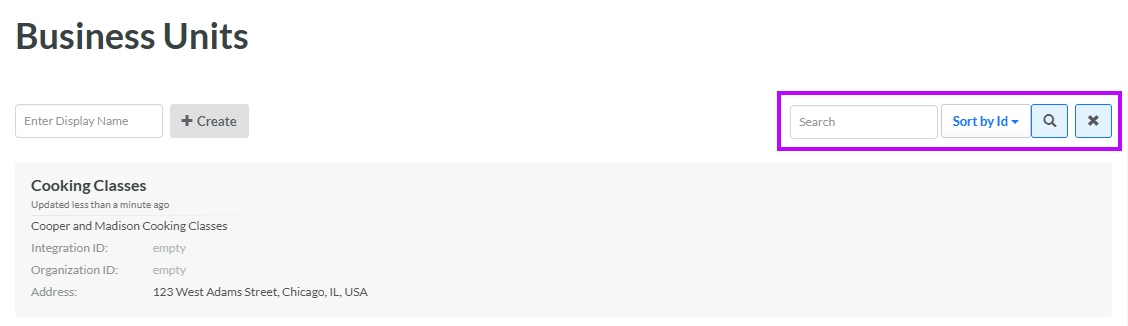
Select Program from the top navigation bar, then select Business Units from the side navigation menu. The Business Units screen is displayed.
-
Optionally, in the Search field, enter the desired text string.
-
Click the Search icon. The screen is refreshed to show only the Business Units that meet your search criteria. If you entered multiple search criteria, the Business Unit must meet ALL criteria.
-
To sort the search results, select the desired sort order from the Sort By drop-down menu. The default sort order is by: Business Unit ID.
-
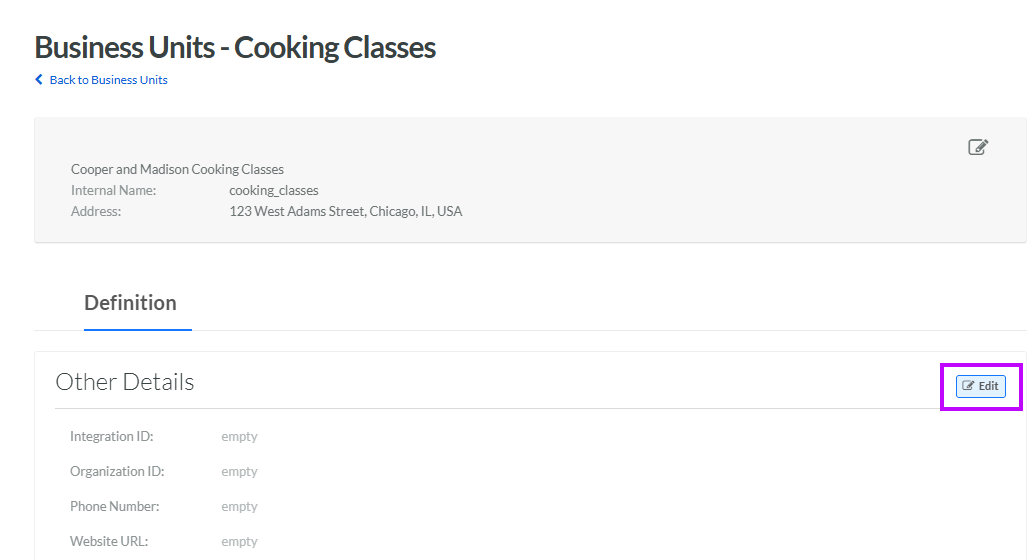
Click the desired Business Unit. The Business Unit Details screen is displayed, with the Definition tab selected.
-
Within the Definition tab, click Edit. The Edit Business Unit pop-up window is displayed.
-
The Integration ID is used to identify this Business Unit within Loyalty, and should be populated with an identifier that is meaningful to the client. This field is not editable by default. To edit the Integration ID, check Edit Integration ID. A confirmation dialog box is displayed; click Ok. Edit the Integration ID value.
-
The Organization ID is typically used by clients who integrate Loyalty with Cheetah Digital. This identifier is intended to map the Loyalty Business Unit to a "child" Customer ID within Cheetah Digital, for clients who utilize a "parent / child" hierarchy in Cheetah Digital. Optionally, in the Organization ID field, enter the desired Organization ID.
-
Optionally, in the Phone Number field, enter the phone number for this Business Unit.
-
Optionally, in the Website URL field, enter the website for this Business Unit.
-
Optionally, from the Primary Responsible Admin drop-down, select the User Account of the person responsible for administering this Business Unit.
-
Optionally, in the Alert Email field, enter one or more email addresses of individuals who should receive email notifications.
-
The Business Attributes and Custom JSON sections allow you to define additional Attributes or other custom parameters. Optionally, enter the desired JSON code in either or both of these fields.
-
Click Save.
